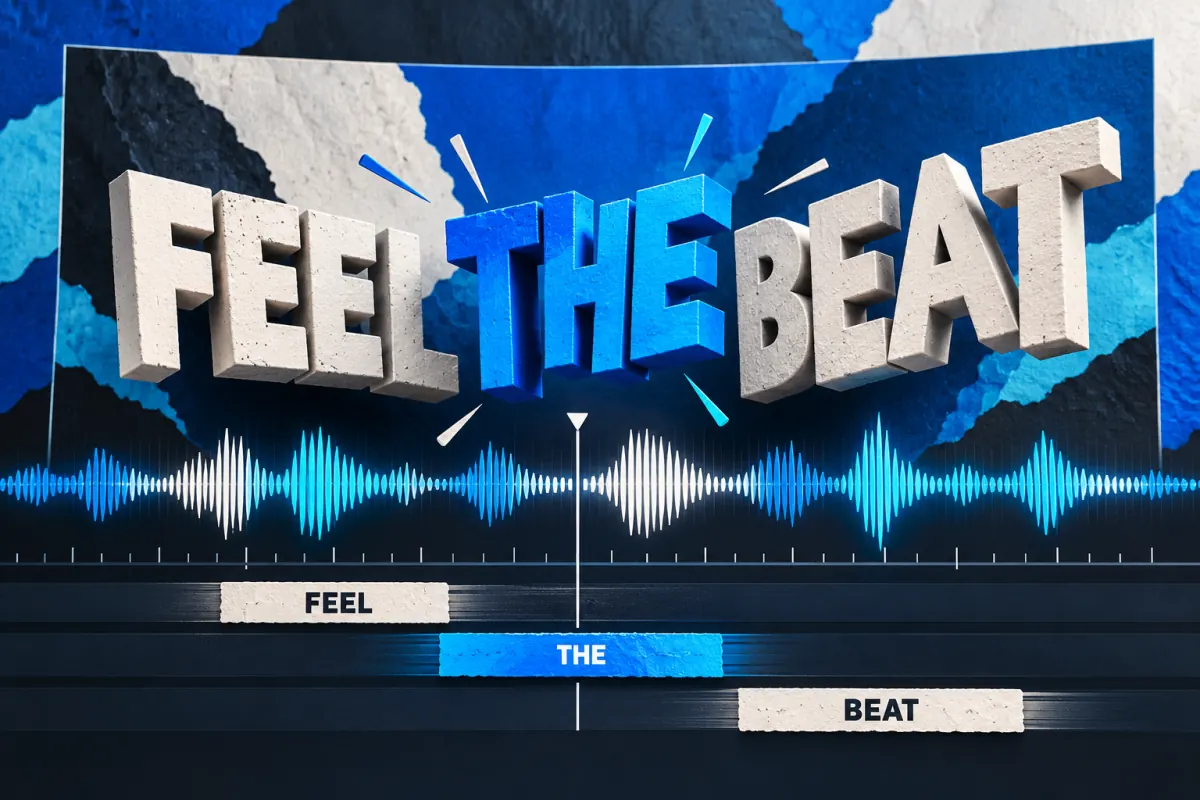
Lyric Video Generator: 3 Methods Compared
Compare three lyric video generator workflows: manual editing, templates, and AI assistance. Plan readable captions, timing checks, and video exports.
A lyric video generator helps put song lyrics on screen in time with a recording. This guide compares three ways to make that result: manual editing for timing control, templates for a consistent design, and AI assistance for captions or visuals. Use the timing fixes and export checklists below to review your own project.
A lyric video puts song words on screen. A photo-to-rap performance makes a person or character appear to perform. Those jobs can overlap, but they are not interchangeable. This guide compares three production methods and gives you a checking routine for the final export, rather than promising that one button handles every stage.
Define the deliverable before selecting a tool
Start with a short production note: the exact audio file, the approved lyrics, the intended platform, and whether you need line-level or word-level timing. Specify if the result is a complete song, a chorus teaser, or a vertical excerpt. A fifteen-second teaser needs different pacing from a four-minute lyric film.
Keep one audio master for the whole project. A revised recording with a longer opening or an extra pickup can shift every caption after the change. Name the audio version clearly and put the corresponding lyric document beside it. The simplest prevention for timing problems is knowing which recording you are timing.
| Decision | Write this down | Why it matters |
|---|---|---|
| Audio | File name and version | Prevents timing against an old mix |
| Text | Approved spelling and line breaks | Keeps auto-transcription from becoming the final authority |
| Layout | Horizontal, vertical, or both | Changes the available reading space |
| Timing | Whole lines or individual words | Determines editing effort |
| Delivery | File format and destination | Helps you check export settings before the deadline |
Method 1: build the lyric video in an editor
Put the audio down before the typography
Import your final song into the editor and mark the beginning of the section you will use. Add the approved lyrics as short blocks. Time one line first, duplicate its styling, and continue through the section. This lets you solve legibility and timing separately instead of repeatedly redesigning each caption.
Use a restrained type treatment while timing. Decorative animation makes it harder to see whether the first consonant and the first word appear together. Once the timing works, add movement and review the section again at normal speed. A beautiful entrance that arrives late still makes the lyric difficult to follow.
Prefer this method when exact timing matters
Manual editing suits unusual delivery, dense rap, deliberate pauses, and lyric changes that an automatic captioner misunderstands. It also gives you a clear way to correct one stubborn word without regenerating the entire visual sequence. The trade-off is that you must make and maintain those timing decisions yourself.
Do not estimate editing time from song duration alone. A sparse chorus with repeated lines and a fast verse can take very different amounts of work. For a useful estimate, finish one representative section first and record how much correcting it required. That is an estimate from your project, not a universal production benchmark.
Method 2: customize a lyric video template
Test the longest line before committing
A template offers an existing arrangement of typography, transitions, and backgrounds. Place your longest lyric line into it before you change colors or add a logo. If that line becomes tiny or falls off the frame, the layout is a poor fit even if the demonstration looked polished.
Watch for layouts that only look good with two or three short words. Break lines by meaning, not just character count. “I thought / you were coming home” may read differently from “I thought you were / coming home.” Keep enough context on screen for the listener to understand the phrase.
Save a clean version for each aspect ratio
Treat the horizontal and vertical layouts as separate compositions. Reposition the text and subject for each version. Do not rely on cropping the sides of a finished horizontal video: the crop may remove a performer, an entire line, or the visual setup for a joke.
Templates are useful for repeatable releases and short promotional excerpts. They are less convenient when every line needs a different treatment. Check the current license, export options, and editable project format before building a release schedule around one template service.
Method 3: combine AI assistance with a review pass
Separate transcription, timing, and visual generation
An AI-assisted workflow may use one service to transcribe audio, another to align words, and another to create background clips. Check each capability explicitly. Image-to-video support alone does not establish that a tool can hear your song, spell its lyrics correctly, or position captions on a beat.
Upload or import your approved lyrics wherever the editor allows corrections. Listen closely to names, slang, ad-libs, and repeated words. An automatic transcript can be a useful starting point, but the recording and the approved lyric sheet should settle disagreements. Do not publish an invented word simply because the captioner sounded confident.
Use generated footage where it adds context
Make a small visual plan rather than regenerating an entire video every time a caption changes. You might use one performance shot, one room detail, and one abstract transition for a chorus. Keep the text in an editable layer if the workflow permits it, so a spelling fix does not require remaking the background.
The AI music video tool comparison has a reusable evaluation sheet for checking these capabilities. It is a document-based comparison, not evidence that all the listed tools were run against a song.
| Check | Focus | Action |
|---|---|---|
| MANUAL | Edit each line | Direct timing control |
| TEMPLATE | Adapt a layout | Check the longest line |
| AI ASSIST | Draft then review | Verify words and timing |
Compare the three production methods
| Method | Main advantage | Main work you still own | Best starting situation |
|---|---|---|---|
| Manual editor | Direct control over words and timing | Every caption boundary and layout | Dense delivery or precise visual direction |
| Template workflow | Repeatable typography and transitions | Text fit, timing, and license checks | A consistent series of short releases |
| AI-assisted workflow | Help with transcription or visual drafts | Accuracy, continuity, and capability checks | Exploratory visuals with a correction pass |
None of these methods is automatically free. Some editors provide free features, templates can require a separate license, and AI usage may consume paid credits. Check the export you actually need, including watermark rules. A free preview is not the same thing as a free finished download.
Fix three common lyric timing problems
1. The first word is late
Start your check at the first audible syllable of the line. An animation may begin on time while the word itself remains invisible during its entrance. Move the readable state earlier or simplify the transition. Watch the finished section with the animation enabled, not only the static text layer.
2. The captions drift after the intro
Check that you have the same audio version in the editor and in the export. Look for an opening silence, a trimmed pickup, or a different arrangement. Correct the underlying offset before dragging dozens of individual captions. Repeated manual nudges can hide the original mistake and make later edits harder.
3. The line disappears before it can be read
Fast delivery does not require every syllable to become a separate tiny flash. Group words into meaningful phrases and remove unnecessary entrance delays. Ask someone who has not memorized the song to read along. If they repeatedly lose their place, reduce visual noise or reconsider the amount of text in each block.
| Check | Focus | Action |
|---|---|---|
| START | First audible word | Check the readable state |
| SOURCE | Same audio version | Find offsets before nudging |
| END | Enough reading time | Review at normal speed |
Plan horizontal and vertical exports separately
For a horizontal video
A 1920×1080 canvas is a practical 16:9 planning example, not a compulsory upload specification. Keep text clear of the edges, verify your output at the size a viewer will use, and preserve the original recording's intended frame rate where appropriate. Avoid enlarging a small generated clip and calling it a higher-detail source.
YouTube publishes recommended upload encoding settings. Use its current guidance when exporting the actual release. Platform settings and supported formats can change; a project preset you saved months ago should not replace the current documentation.
For a vertical excerpt
A 1080×1920 canvas is a useful 9:16 planning example. Leave room for the destination app's interface, captions, and account controls. Upload a draft or preview through the app's current workflow and inspect the display instead of assuming one permanent safe-zone measurement applies everywhere.
Choose a self-contained phrase for a TikTok excerpt. If the punchline depends on a verse the viewer will not hear, write a shorter setup or choose another section. Keep your horizontal master and vertical project separate so you can correct each without breaking the other.
Where a photo-to-rap draft fits
If your concept centers on a person's face rather than on animated words, start with the portrait-to-video planning checklist. It covers reference photos and a shot brief. That planning stage can help even when the eventual editor is a different tool.
TryRapVideo accepts photo-and-English-lyrics requests in its rap video workspace. It generates a rap performance rather than timed on-screen lyrics: automatic captions are not currently supported. Use an editor to add and verify synchronized text when you need a lyric video.
TryRapVideo is in public beta. Signed-in users can submit photo-and-text or text-only rap video requests, follow their progress, and download completed videos from their private library. Starter, Creator and Pro subscriptions are available with monthly or annual billing through Stripe. Subscriptions renew automatically unless canceled. Credits are issued monthly after payment confirmation, including on annual plans. Manage billing and cancel renewal from account settings. Generation time and creative results vary. Review every completed video before sharing; example concepts are not guarantees of an identical result.
Frequently asked questions
How do I make a lyric video from a song?
Pair the final audio with an approved lyric sheet, choose an editor or template, then time short text blocks to the recording. Review spelling and timing before styling. Export a short section first to check that the finished file behaves like the editor preview.
Can AI automatically sync lyrics to music?
Some workflows offer transcription or alignment, but those are specific capabilities to verify. Rap phrasing, names, and ad-libs still need a listening pass. A general video generator or photo animator should not be assumed to include lyric timing.
Is a lyric video generator free?
It depends on the provider and the export. Check whether a free option includes the resolution, duration, watermark conditions, and usage permissions you need. Do not assume a free editor, a trial, and free downloadable output are equivalent.
Should I make separate videos for YouTube and TikTok?
Separate compositions usually give you more control over text size and framing. You can reuse the same song section and design language, but recheck every caption after changing the aspect ratio and preview the result in the destination app.
Put the words and the visual plan together
Keep your lyrics readable and your performance concept specific. Generate a photo-and-lyrics rap video, then use a lyric editor to add readable, synchronized captions if your project needs them.
Author

Categories
More Posts
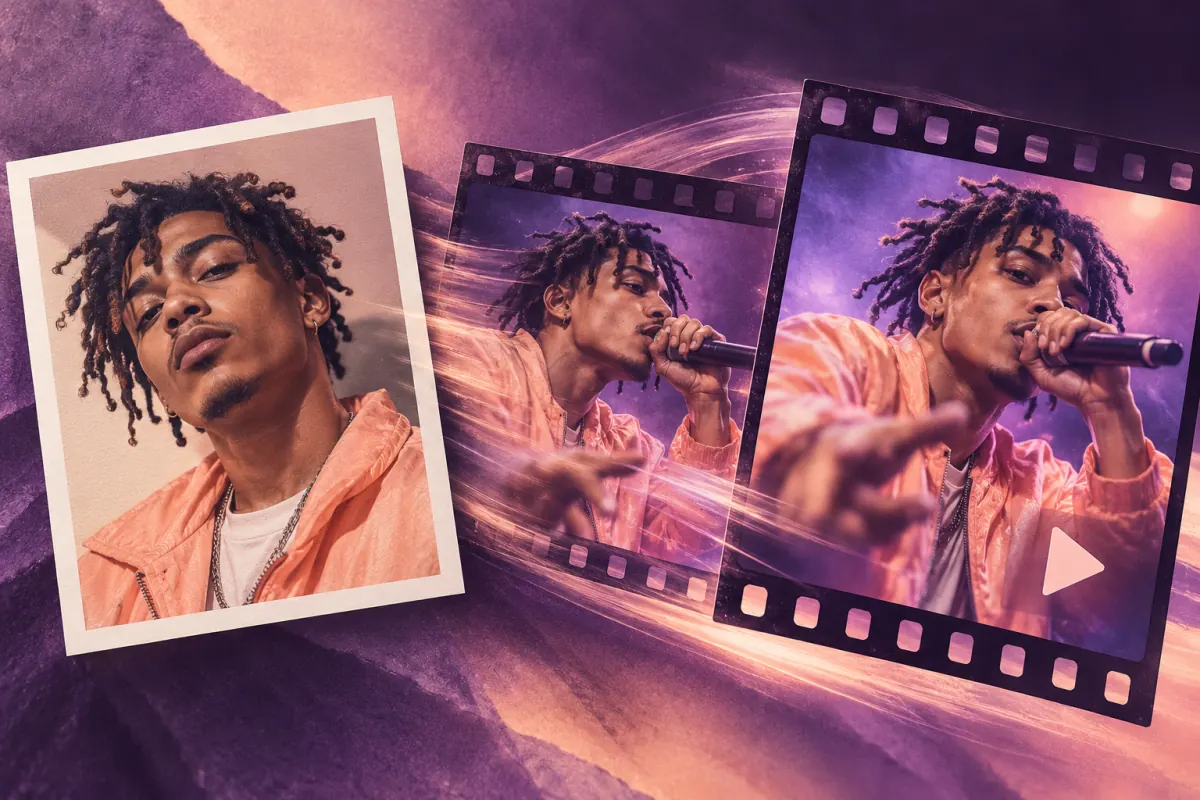
Photo to Video AI: Plan a Rap Video
Plan a photo to video AI rap project: choose a reference, write a scene and lyric brief, and review common visual problems before choosing a workflow.
7 AI Lyrics Generator Tools Compared (2026)
Compare seven AI lyrics generator tools for rap writing using documented features, free access, and editing workflows, plus a reusable prompt checklist.
7 AI Music Video Generators Compared (2026)
Compare seven AI music video generator tools by audio input, lyric support, and published features, with a reusable checklist for your own song.
Newsletter
Join the community
Subscribe to our newsletter for the latest news and updates